Compatible Devices: Android TVs, Android Boxes, Mobiles & Tablets
Download the Downloader App
- Open the Google Play Store on your Android TV or Android Box.
- Search for Downloader and install the app.
- Open Downloader once installed.
- If prompted to allow Downloader to install unknown apps, enable the permission and return to the installation.
- If you see a Google Play Protect warning, select More details and then Install anyway if you trust the source.
Enter the Downloader Code
- On the Downloader home screen, click the # button.
- Enter the following Downloader Code: 1048985
- Select Load and wait for the download page to open.
Install Perfect Media Smarters
- The Perfect Media IBO APK will begin downloading.
- Once the download has finished, select Install.
- If prompted to allow Downloader to install unknown apps, enable the permission and return to the installation.
- If you see a Google Play Protect warning, select More details and then Install anyway if you trust the source.
Open Perfect Media Smarters
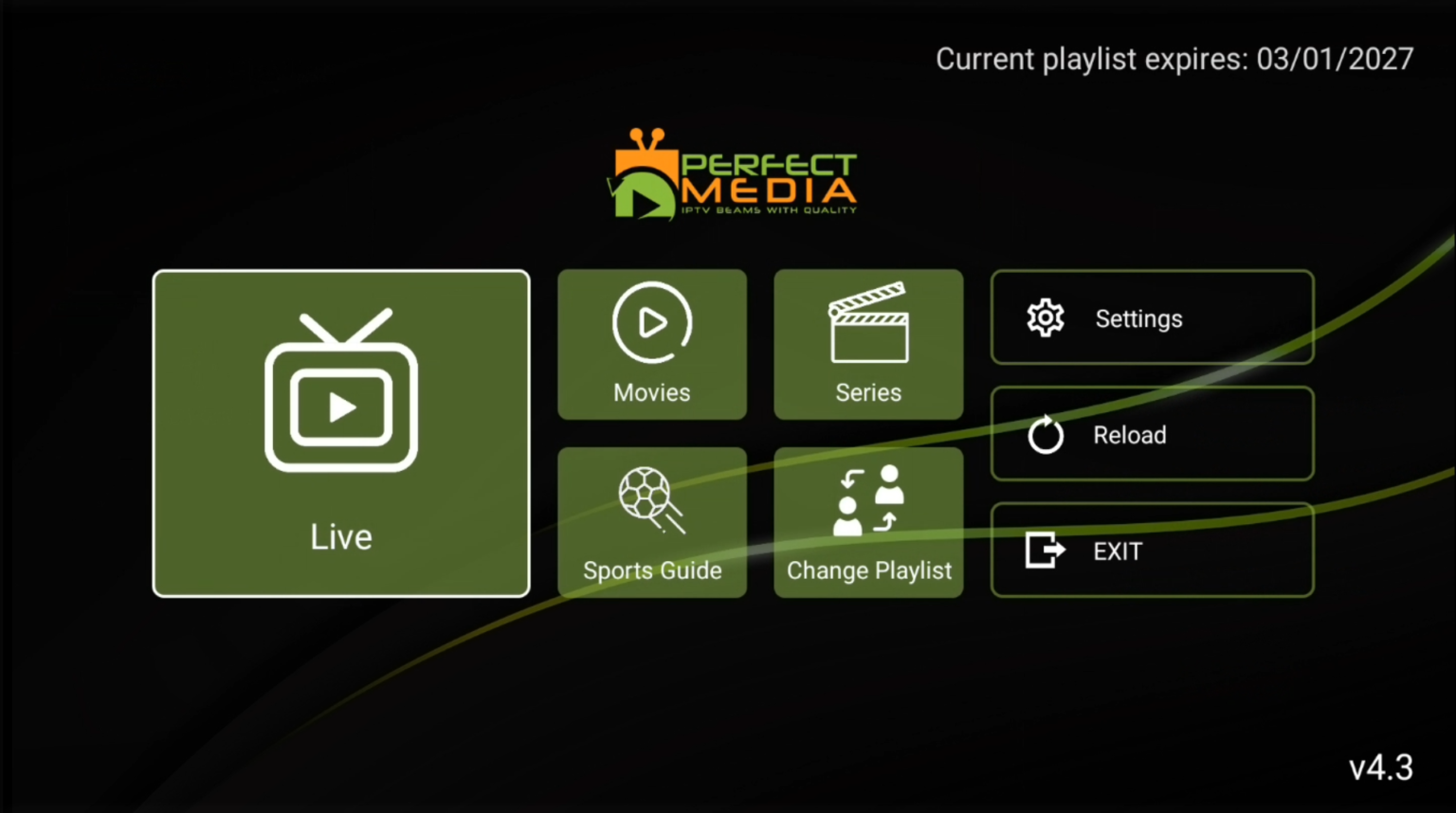
- Once installation is complete, open Perfect Media Smarters.
- If prompted to allow the app to display over other apps, select Settings and enable the required permission.
Add Your Playlist
- Select Add Playlist
- Enter your playlist/login details when prompted.
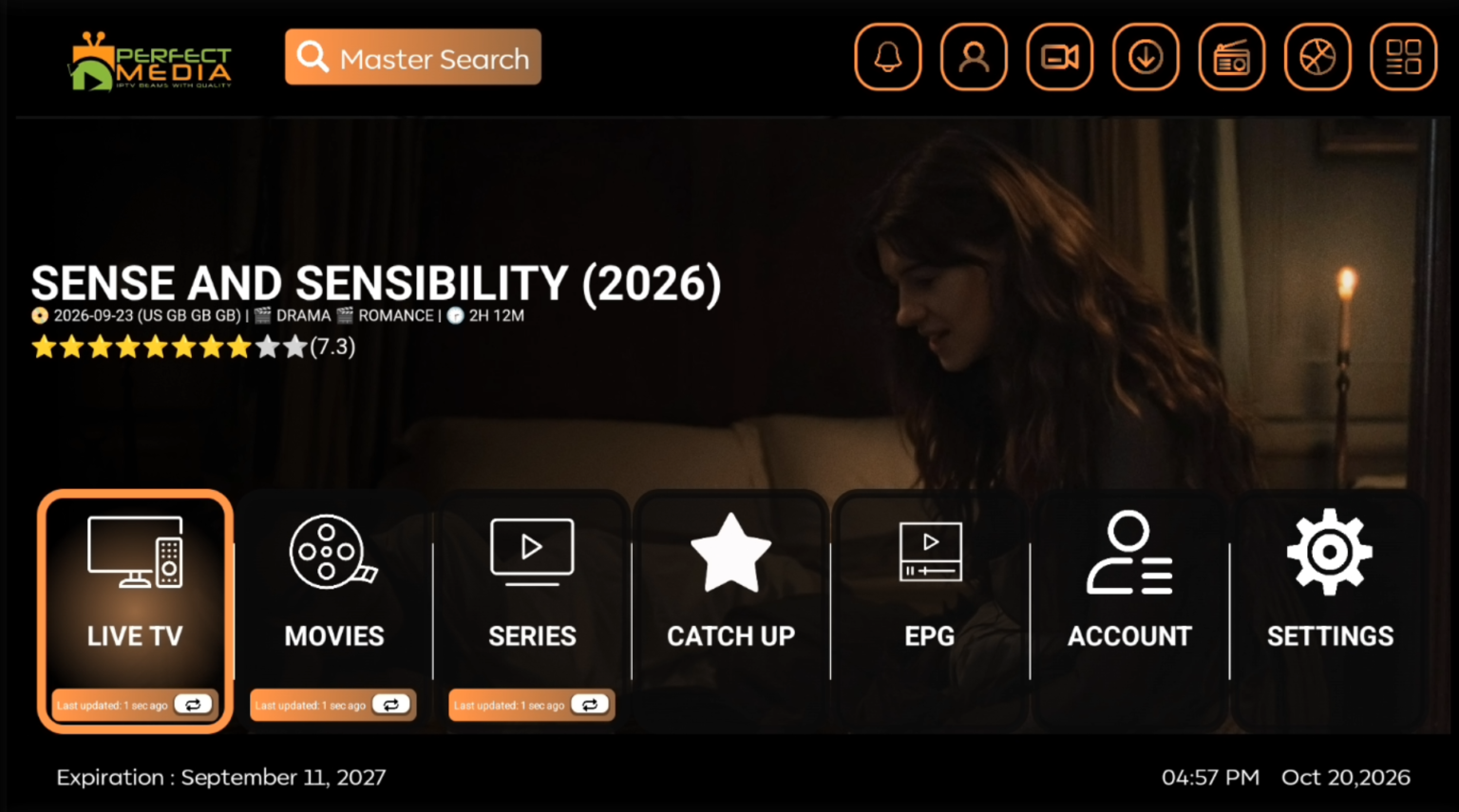
- The app will process your playlist and load your channels.
You’re all set! 🎉 Your Perfect Media Smarters playlist should now be loaded and ready to use.🎬✨